Showing posts with label User Manual. Show all posts

Monday, October 17, 2016

Viewsonic ViewPad 10e Manual / User Guide PDF Download


Viewsonic ViewPad 10e Manual / User Guide PDF Download - The Viewsonic ViewPad 10e user guide is now available online for download at Viewsonic website (viewsonic.com). This Viewsonic ViewPad 10e user guide has 27 pages in PDF file format with 3.04 MB in size. This Viewsonic ViewPad 10e manual will guide you how to use the Viewsonic ViewPad 10e tablet correctly. This Viewsonic ViewPad 10e user guide has been specially designed to guide you through the functions and features of your device.

Viewsonic ViewPad 10e Manual / User Guide PDF Download


Viewsonic ViewPad 10e Specification and features:

- Operating System: Android™ 2.3.1 Gingerbread
- Processor: 1 GHz
- RAM: DDR3 512 MB, 667MHz
- Internal Memory: NAND 4GB
- External Memory Storage: Micro SD card expandability up to 32GB
- Display: 9.7" TFT-LCD (1024x768 XGA) capacitive type touch panel
- Contrast: 800:1 (typ)
- Brightness: 400 nits / cd/md/m2 (Typ)
- Camera: CMOS 1.3MP front side
- Connectivity: Wi-Fi (802.11 b/g/n), Bluetooth 2.1 +EDR compatibility
- Multimedia: Microphone and speakers
- I/O Ports and Cards: 3.5mm headset audio jack, micro USB / Mini-HDMI
- Battery: Li-Polymer 7.4V / 2700mAh, 20Wh
- Battery Life: 5.5 hrs (approx)
- Physical Dimensions: (WxDxH): 9.51" x 7.43" x 0.26" (241.6 x 188.6 x 9.1 mm)
- Packaging Dimensions (WxDxH): 10.2" x 7.87" x 0.24" (255 x 200 x 60 mm)
- Weight: 1.37 lb. / 0.62 kg
- Warranty: 1-year limited warranty on parts and labor

Viewsonic ViewPad 10e Device Layout:

1. Touch screen
2. Camera
3. Volume
4. Reset
5. Mic
6. Power Button
7. Micro SD card
8. Mini HDMI
9. Audio
10. Mini USB
11. DC jack

Table of Contents (Viewsonic ViewPad 10e User Guide):

Getting Started
Start Using Your Device
ViewScene 3D
Settings
Install and Remove an Applications
Setting Date & Time
Set the System Language
Configuring a Wi-Fi Network
Configuring a Bluetooth Connection
Web Browsing
Using Applications
Setting up an Internet Email Account
Play Music
Gallery
Other Information
Troubleshooting

This Viewsonic ViewPad 10e manual / user guide is provided for free at viewsonic.com. We only collect the information. Manualusersguide.com is not affiliated with the website. Read our disclaimer before downloading this Viewsonic ViewPad 10e tablet user's guide.

Download free Viewsonic ViewPad 10e user guide here. (27 pages PDF file; 3.04 MB)


Monday, July 25, 2016

HTC Touch Pro2 T7373 Manual Users Operating Guide


HTC Touch Pro2 T7373 Manual Users Operating Guide


Do you own the HTC Touch Pro2 T7373 mobile phone? Here is HTC Touch Pro2 T7373 owner manual or user guide for you. This manual is available online and you can download it directly from HTC website. This manual comes in 264 pages of PDF document format (6.60 MB). This HTC Touch Pro2 T7373 user guide contains any information and instructions how to operate the HTC Touch Pro2 T7373 mobile phone properly, such as understanding phone menus & functions, using menu navigation, making a call from history, managing contacts, messaging setting, Sound Settings, Phone Settings, application setting, sound setting, internet and browser setting, services and more. Before using this HTC Touch Pro2 T7373 mobile phone, you have to check the accessories supplied, such as HTC Touch Pro2, USB sync cable, Battery, Quick Start Guide, AC adapter, Extra stylus, Screen protector, Pouch, Wired stereo headset and Two accompanying discs.

As described at HTC website, HTC Touch Pro2 T7373 Mobile Phone comes with Qualcomm MSM7200A, 528 MHz Processor, Windows Mobile 6.1 Professional Operating System, ROM: 512 MB, RAM: 288 MB, 3.6-inch TFT-LCD touch-sensitive screen with 480 X 800 WVGA resolution, Adjustable tilt screen, HSPA/WCDMA, Quad-band GSM/GPRS/EDGE, TouchFLO 3D Device Control, Slide-out 5-row QWERTY keyboard, Internal GPS antenna, Bluetooth 2.1 with Enhanced Data Rate and A2DP for wireless stereo headsets, Wi-Fi IEEE 802.11 b/g, HTC ExtUSB (11-pin mini-USB 2.0, audio jack, and TV Out in one), 3.2 megapixel color camera with auto focus, Rechargeable Lithium-ion battery 1500 mAh, microSD memory card (SD 2.0 compatible), Straight Talk, G-Sensor, Noise-cancelling dual microphones and speakers, size 116 X 59.2 X 16.65 mm (4.57 X 2.33 X 0.66 inches) and weight 178.5 grams.

Download HTC Touch Pro2 T7373 Features Guide.PDF (16 pages PDF file, 451 KB)

Table of Content:

- Chapter 1 Getting Started
- Chapter 2 Using Phone Features
- Chapter 3 TouchFLO 3D
- Chapter 4 Entering Text
- Chapter 5 Synchronizing Information
- Chapter 6 Exchanging Messages
- Chapter 7 Working With Company E-mail and Meeting Appointments
- Chapter 8 Internet
- Chapter 9 Bluetooth
- Chapter 10 Navigating on the Road
- Chapter 11 Camera and Multimedia
- Chapter 12 Programs
- Chapter 13 Managing Your Device
- Appendix
- Index

This HTC Touch Pro2 T7373 user guide is available for FREE at HTC website, we merely collect the information, we neither affiliated with the author(s), the website and any brand(s) nor responsible for its content and change of content. (Read our disclaimer before you download the document from the website).


Download HTC Touch Pro2 T7373 User Guide.PDF (264 pages PDF file, 6.60 MB)

Download HTC Touch Pro2 T7373 Quick Start Guide.PDF (44 pages PDF file, 1.29 MB)


Friday, April 22, 2016

ASUS ZenBook Manual User Guide & Troubleshooting PDF Download

The ASUS ZenBook UX303UB manual user guide & troubleshooting has been released by asus at their website. The ASUS ZenBook user guide is provided in PDF document format (100-pages, PDF, 3.56 MB) that you can download directly from asus website. You can read ASUS ZenBook user manual by using PDF reader software/application. The AASUS ZenBook manual contains complete reference information about how to operate the ASUS Zenbook Pro Notebook properly, such as how to use the hardware, how to secure your Notebook, protecting data against viruses, Installing or replacing hardware, creating and using recovery media, basic troubleshooting and many more.
FREE PDF : ASUS ZenBook Manual User Guide & Troubleshooting
Please clik here to download FREE PDF : ASUS ZenBook Manual User Guide & Troubleshooting :

ASUS ZenBook UX303UB Specifications

  • Processor
    Intel® Core™ i7 6500U Processor,
    Intel® Core™ i5 6200U Processor, 
  • Operating System
    Windows 10 Home
    Windows 10 Pro
  • Chipset
    Integrated Intel® CPU
  • Memory
    DDR3L 1600 MHz SDRAM, OnBoard Memory 4 GB , DIMM Up to 12 G

  • Display
    13.3" Auto HD (1366x768)/IPS FHD (1920x1080)/IPS QHD+(3200 x 1800) 
  • Graphic
    NVIDIA® GeForce® 940M with 2GB DDR3 VRAM 
  • Storage
    - 128GB SSD
    - 256GB SSD
    - 512GB SSD
    - 500GB HDD
    - 1TB HDD
    - 500GB HDD With 8 G SSD 
  • Card Reader
    2 -in-1 card reader ( SD/ SDHC)
  • Camera
    HD Web Camera 
  • Networking
    Integrated 802.11 a/g/n or 802.11 ac (WiDi)
    BT 4.0 support (on WLAN+ BT 4.0 combo card)
  • Interface
    1 x COMBO audio jack
    3 x USB 3.0 port(s)
    1 x HDMI
    1 x mini Display Port
    1 x SD card reader
    1X AC adapter plug

  • Audio
    Built-in Speakers And Microphone
    ICEpower®
    ASUS SonicMaster Technology
  • Battery
    3Cells 50 Whrs Polymer Battery
  • Power Adapter
    Plug Type :ΓΈ4 (mm)
    Output :
    19 V DC, 3.42 A, 65 W
    Input :
    100 -240 V AC, 50/60 Hz universal
  • Dimensions
    323 x 223 x 19.2 mm (WxDxH) 
  • Weight
    (with Polymer Battery) 
  • Security
    Intel Anti-theft
  • Certificates
    UL, FCC Compliance, BSMI, Australia C-TICK / NZ A-Tick Compliance, CCC, Energy star
  • Only for Search
    Thinnes - Ultrabook
    Thinnes - Laptop


Monday, April 4, 2016

Dell Inspiron M5040/ 15-N5040/ 15-N5050 Owner’s Manual Free PDF Download

Are you a Dell Inspiron M5040/ 15-N5040/ 15-N5050 owner? Here is Dell Inspiron M5040/ 15-N5040/ 15-N5050 owner's manual/guide for you. This manual is available online and you can download it directly from DELL website. This manual comes in 74 pages of PDF document format. This Dell Inspiron M5040/ 15-N5040/ 15-N5050 Owner’s Manual contains any information and instructions how to operate the Dell Inspiron M5040/ 15-N5040/ 15-N5050 properly, such as how to replacing the battery, how to replace the keyboard, how to setup your phone for the first time, how to adjust the volume, how to replacing the memory module(s), how to replacing the optical drive, how to replacing the hardrive and many more.

Dell Inspiron M5040/ 15-N5040/ 15-N5050 Owner’s Manual Free PDF Download

Table Contents :
1. Before You Begin
2. Battery
3. Keyboard
4. Memory Module(s)
5. Optical Drive
6. Wireless Mini-Card
7. Palm-Rest Assembly
8. Power Button Board
9. Hard Drive
10. Coin-Cell Battery
11. USB Board
12. Thermal Cooling Assembly
13. Processor Module (For Inspiron 15-N5050/15-N5040 Only)
14. Hinge Cover
15. Display
16. Camera Module
17. System Board
18. Flashing the BIOS

Removing the Battery
1. Turn off the computer and turn it over.
2. Slide the battery lock latch to the unlock position until it clicks into place.
3. Slide and hold the battery release latch in the unlock position.
4. Slide and lift the battery out of the battery bay.
Removing the Battery
1. battery release latch
2. battery
3. battery lock latch

Replacing the Battery
1. Slide the battery into the battery  bay until it clicks into place.
2. Slide the battery lock latch to the lock position.

Removing the Keyboard
1. Remove the battery
2. Turn the computer over and open the display as far as possible.
3. Using a plastic scribe, release the four  tabs that secure the keyboard to the palm rest and ease the keyboard up until it clears off the palm rest.
4. Carefully turn the keyboard over and place it on the palm rest assembly.
5. Lift the connector latch that secures the keyboard cable to the connector on the system board and remove the keyboard cable.
6. Lift the keyboard off the computer.
Removing the Keyboard
1. plastic scribe
2. tabs (4)
3. keyboard
Removing the Keyboard
1. keyboard cable
2. keyboard

Replacing the Keyboard
1. Slide the keyboard cable into the co nnector on the system board. Press down on the connector latch to secure  the keyboard cable to the connector on the system board.
2. Slide the tabs on the keyboard in to the slots on the palm rest.
3. Gently press around the edges of the keyboard to lock the four tabs securing the keyboard.
4. Close the display and turn the computer over.
5. Replace the battery.

Removing the Memory Module(s)
1. Remove the battery.
2. Remove the keyboard.
3. Use your fingertips to carefully spread apart the securing clips on each end of the memory-module connector until the module pops up.
4. Remove the memory module from the memory-module connector.
Removing the Memory Module(s)
1. memory-module connector
2. securing clips (2)
3. memory module

Replacing the Memory Module(s)
1. Follow the instructions in "Before You Begin" on page 9.
2. Align the notch in the memory module with the tab in the memory-module connector.
3. Slide the memory module firmly into  the slot at a 45-degree angle, and press the memory module down until it clicks into place. If you do not hear the click, remove the memory module and reinstall it.
4. Replace the keyboard (see "Replacing the Keyboard" on page 17).
5. Replace the battery (see "Replacing  the Battery" on pa ge 14), or connect the AC adapter to your computer and an electrical outlet.
6. Turn on the computer.
Replacing the Memory Module(s)
1. tab
2. notch


For the Dell Inspiron M5040/ 15-N5040/ 15-N5050 Owner’s Manual complete, please download here :

Wednesday, March 30, 2016

SONY Cyber-shot® Digital Still Camera DSC-D770 Manual / Operating Instructions

The SONY Cyber-shot® Digital Still Camera DSC-D770 Manual and Operating Instructions is now available for download at SONY website. This SONY Cyber-shot® Digital Still Camera DSC-D770 Manual and Operating Instructions is available in PDF file format with 128 pages. The size of this 128-pages LG Beacon owners manual PDF file is 1.2 MB. It comes in English language. The SONY Cyber-shot® Digital Still Camera DSC-D770 Manual and Operating Instructions gives you any references how to operate SONY Cyber-shot® Digital Still Camera DSC-D770 correctly. Please be sure to read all instructions thoroughly and keep them where they will be read by all who use the product.

SONY Cyber-shot® Digital Still Camera DSC-D770 Manual and Operating Instructions


Table Contents SONY Cyber-shot® Digital Still Camera DSC-D770 Manual and Operating Instructions :
- Battery Safety Precautions
- Operating Precauyions
- To Maintain the Efficiency of the Camera
- Please Read This
- Checking the Supplied
- Accessories
- Features
- Locations and Functions of Parts
- Preparations
- Taking a Picture
- Viewing
- Advance Operations
- Setting
- Taking a Picture
- Playback
- Erasing
- Miscellaneous 
- Menu Summary
- Maintenance
- Warning Indicators
- Error Messages
- Specifications
- Index

This SONY Cyber-shot® Digital Still Camera DSC-D770 Manual / Operating Instructions is provided for free at here.

Download free SONY Cyber-shot® Digital Still Camera DSC-D770 Manual / Operating Instructions PDF file here.


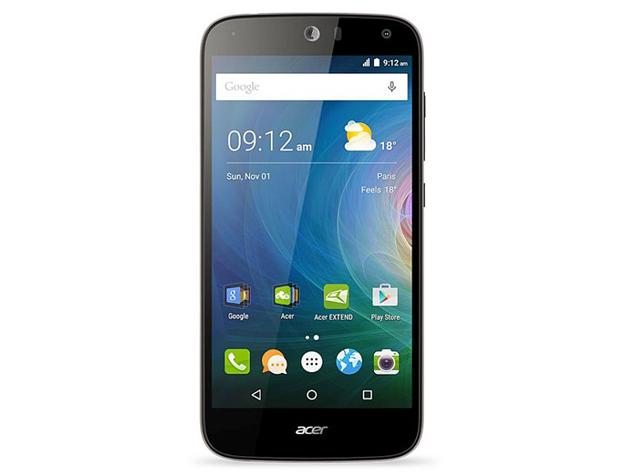
Acer Liquid Z630S Full Phone Specifications and User Manual

Acer Liquid Z630S Phone Specifications is now available for download at Acer website. Acer Liquid Z630S user manual is available in PDF file format with 273 pages. The size of this 273-pages LG Beacon owners manual PDF file. It comes in English language. The Acer Liquid Z630S user manual gives you full specifications about Acer Liquid Z630S. Please be sure to read all instructions thoroughly and keep them where they will be read by all who use the product.


Acer Liquid Z630S Specifications
Performance• 1.3 GHz  octa -core processor
• System memory:
• ROM  32 GB eMMC + RAM  3  GB
• Android operating system

Display
• 5.5"  IPS  LCD
• 1280 x 720 resolution

Multimedia
Formats supported:
USB connector
• Micro USB connector
• USB client
• DC power-in (5.2 V, 1.35 A)

Type Formats
Image : JPEG, GIF, PNG, BMP
Audio playback : MP3, AMR, AAC LC , AAC+, eAAC+,  Vorbis, FLAC, MIDI, WAVE
Ringtone : MP3, AMR, AAC LC, AAC+, eAAC+, Vorbis, FLAC, MIDI, WAVE
Video recording : H.263, H.264, MPEG4
Video playback : H.263, H.264, MPEG4, VP872 -

Connectivity• Bluetooth 4.0 + EDR
• IEEE 802.11b/g/n
• HSPA / WCDMA 900 (B8) / 1900 (B2) / 2100 (B1) MHz 
• LTE 800 (B20) / 1800 (B3) / 2100 (B1) / 2600 (B7) MHz
• HSPA+ / GPRS / EDGE
•GPS

Camera• 8 MP rear camera (auto focus, with LED flash)
• 8 MP front camera (fixed focus)

Expansion• microSD memory card slot (up to 32 GB)

Battery• 4000 mAh battery

DimensionsHeight : 156. 9  mm
Width : 77.4 mm
Thickness : 8.9 mm
Weight : 165 g (with battery)

For Full Specifications PDF file please download here :
Acer Liquid Z630S Full Phone Specifications.pdf


Tuesday, March 29, 2016

Acer Iconia W3-810P User Manual PDF Download

The Acer Iconia W3-810P user manual is now available for download at acer.com. This Acer Iconia W3-810P owners manual is available in PDF file format. The size of this Acer Iconia W3-810P user manual PDF file is 116.4 Kb. It comes in English language. The Acer Iconia W3-810P gives you any references how to operate Acer Iconia W3-810P correctly. Please be sure to read all instructions thoroughly and keep them where they will be read by all who use the product.

Acer Iconia W3-810P User Manual PDF Download
General
-  Do not use this product near water.
-  Do not place this product on an unstable cart, stand or table. If the product falls, it could be seriously damaged.
-  Slots and openings are provided for ventilation to ensure reliable operation of the product and to protect it from overheating.

These openings must not be blocked or covered. The openings should never be blocked by placing the product on a bed, sofa, rug or other similar surface. This product should never be placed near or over a radiator or heat register, or in a built-in installation unless proper ventilation is provided.
-  Never push objects of any kind into this product through cabinet slots as they may touch dangerous voltage points or shortout parts that could result in a fire or electric shock. Never spill liquid of any kind onto or into the product.
-  To avoid damage of internal components and to prevent battery leakage, do not place the product on a vibrating surface.
-  Your device and its enhancements may contain small parts. Keep them out of the reach of small children.

Battery-Powered Devices
These precautions apply to all products that use rechargeable or disposable batteries. Improper use of batteries may result in battery fluid leakage, overheating, or explosion. Released battery fluid is corrosive and may be toxic. It can cause skin and eye burns, and is harmful if swallowed.

Keyboard overview
Acer Iconia W3-810P User Manual PDF Download
1.   Power button
2.   Connect button
3.   Battery cover
4.   Bluetooth LED indicator
5.   Power LED indicator

How to Connecting with an Acer tablet
For Windows
1.   Make sure your Acer tablet is powered on.
2.   Slide the  Power  button to the right on the Acer Bluetooth keyboard.
3.   To activate the Bluetooth receiver, press and hold the Connect button on the Acer Bluetooth keyboard until the Bluetooth LED starts blinking.
4.   Tap the Settings  charm on your Acer tablet >  Change PC Settings > Devices > Add a device.
5.   The Tablet will search for available Bluetooth devices to pair with.
6.   Once your Acer Bluetooth keyboard is identified, tap Acer Bluetooth Keyboard*. The screen will then give you a six-digit passcode. 
* Name of keyboard may vary
7.   Enter the passcode using your Acer Bluetooth keyboard and press  Enter. Note that the passcode is only valid for one minute. If the passcode disappears, or if you enter the wrong passcode, repeat the steps above.
8.   Once pairing is complete, the Bluetooth indicator LED will stop flashing.

Note: Power LED indicator will light when battery level is low

For Acer  Iconia W3-810P user manual complete please download here :

The file is rar file. You must extract the file for get PDF File.
Please share to your friends. Thank you.